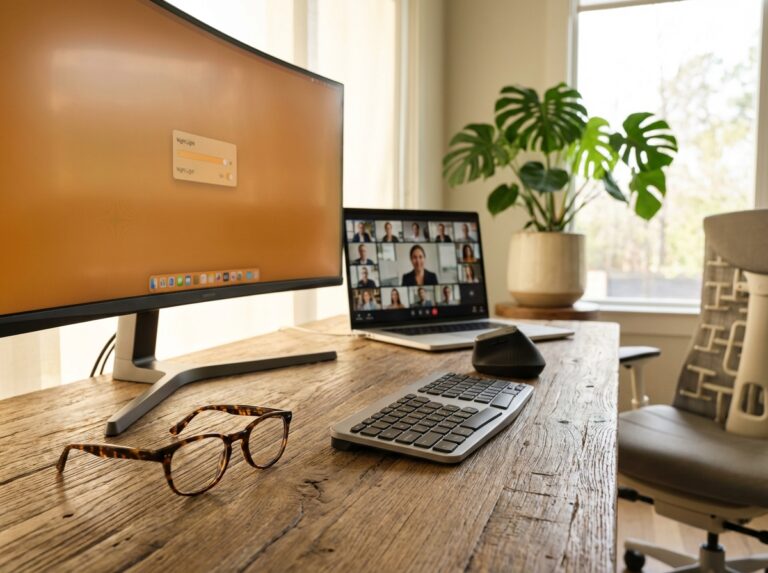
Choosing between dual monitors and an ultrawide display shapes workflow, desk ergonomics, and physical comfort. This article compares the two layouts through the lens of ergonomics for office workers and remote teams, covering productivity tradeoffs, proper monitor placement, chair and keyboard alignment, mounting solutions, and daily stretches to prevent back, neck, and wrist pain.
Why monitor choice matters for ergonomic health
The debate over dual monitors versus a single ultrawide display is about more than just screen real estate. It’s a fundamental question of workflow philosophy. Do you work more efficiently with physically separate, dedicated zones, or within a single, expansive digital canvas? The answer directly impacts daily productivity, and decades of research show that moving beyond a single standard monitor provides a significant boost. Studies from institutions like the University of Utah and research firms like Jon Peddie Research consistently report productivity gains averaging around 42% for users who adopt multiple displays. But as ultrawide monitors have become more accessible and powerful, the choice is no longer as simple as just adding a second screen.
Dual monitor setups have long been the gold standard for power users for one key reason: mental compartmentalization. This configuration allows you to dedicate entire screens to specific functions. For example, a developer can have their primary 27-inch monitor filled with code while a secondary monitor, perhaps even oriented vertically, displays documentation, a terminal, or team communications. This physical separation creates a clear boundary between primary and secondary tasks, which can help maintain focus. For many, this setup feels more organized. It’s also incredibly flexible. You can mix and match monitor sizes, resolutions, and orientations to perfectly suit your needs. During video calls, the ability to share one screen while keeping notes and private information on the other is a simple but powerful advantage.
On the other hand, an ultrawide monitor offers a completely different experience built around a seamless, unified workspace. The absence of a central bezel is its most celebrated feature. For creative professionals working with long video timelines in Adobe Premiere or sprawling artboards in Illustrator, that uninterrupted horizontal space is invaluable. Similarly, financial analysts can view massive spreadsheets or multiple data dashboards without the visual break of a bezel disrupting columns and charts. A 34-inch ultrawide can comfortably fit three full-sized application windows side-by-side, creating an immersive command center. Modern operating systems have made managing this space easier than ever. Windows 11’s Snap Layouts and Microsoft’s free PowerToys utility with FancyZones allow users to create complex, customized window arrangements that snap into place effortlessly, mimicking the structured feel of a dual monitor setup but with far more flexibility.
The ideal choice often comes down to your specific job role.
- Developers and Programmers
Many still lean towards dual monitors. The ability to use a vertical monitor for reading long blocks of code is a workflow that’s hard to replicate on a single horizontal screen. The clear separation helps isolate the coding environment from distractions. - Financial Analysts and Traders
This field is seeing a major shift toward ultrawides. A commissioned Forrester study found that traders who switched to large, curved ultrawide displays saw productivity gains of 10%. The ability to monitor multiple real-time data feeds and charts on one continuous screen reduces the mental effort of scanning across separate displays. - Content Creators and Designers
Ultrawides are often the clear winner here. The uninterrupted canvas is a massive benefit for video editing, audio production, and graphic design. It provides a more natural and immersive environment for creative tasks that benefit from a wide field of view. You can read more about how an ultrawide monitor can support productivity on Lenovo’s knowledgebase. - General Office Multitaskers
For roles that involve juggling email, documents, web browsers, and communication apps, the choice is more subjective. Some prefer the rigid organization of two screens, while others enjoy the fluid, customizable layout of an ultrawide. It often comes down to a personal preference for either structured separation or a unified, flexible workspace.
Ultimately, the productivity showdown isn’t about declaring one setup universally superior. It’s about matching the technology to your unique workflow. A dual monitor setup encourages a structured, compartmentalized approach to tasks, while an ultrawide promotes a fluid, immersive, and integrated workflow. Understanding how you work best is the first step toward choosing the screen layout that will truly enhance your efficiency.
Technical comparison of dual monitors and ultrawide displays
Choosing between a dual monitor setup and a single ultrawide display involves distinct technical advantages and ergonomic trade-offs that go far beyond just screen size. Understanding these differences is key to choosing the right foundation for your workspace.
A typical dual monitor setup involves two 24 or 27-inch monitors, usually with a Full HD (1920×1080) or Quad HD (2560×1440) resolution. Placing two 27-inch QHD monitors side-by-side gives you a massive 5120×1440 workspace. In contrast, ultrawide monitors come in sizes like 34, 38, or even 49 inches. A 34-inch model commonly has a 3440×1440 resolution, offering about 30% more horizontal space than a single 16:9 QHD monitor. The larger 49-inch “super ultrawide” displays match the dual 27-inch setup with a 5120×1440 resolution but on a single, seamless panel.
Pixel Density and Visual Clarity
Pixel density, measured in pixels per inch (PPI), determines the sharpness of text and images. A 27-inch 1440p monitor and a 34-inch 3440×1440 ultrawide both have a PPI of about 109. This is a sweet spot for many users, offering crisp visuals without needing aggressive operating system scaling. A lower PPI, like on a 27-inch 1080p monitor, can make text appear blocky. Higher PPI on 4K displays provides incredible sharpness but often requires scaling text and icons to 150% or more to remain legible, which can sometimes cause issues with older applications.
The Bezel Gap vs. Seamless Immersion
The most obvious physical difference is the bezel. With dual monitors, you will always have a physical gap in the middle, typically between 5mm and 10mm wide depending on the model. This gap can disrupt workflows that involve dragging windows across screens or working with wide content like video timelines or large spreadsheets. An ultrawide monitor eliminates this gap entirely, providing an uninterrupted canvas. This seamless view is a major reason creative professionals and data analysts often prefer them. Research suggests that for certain “take it in” tasks, like reviewing architectural plans, an ultrawide can offer superior performance.
Curvature and Ergonomics
Most ultrawide monitors feature a curve, typically rated from 1800R to 3800R (a lower number means a more pronounced curve). This curvature is not just for aesthetics. It’s designed to keep the edges of the wide screen at a more consistent distance from your eyes, reducing the need for your eyes to refocus as they scan horizontally. This can decrease eye strain. From an ergonomic standpoint, a curved ultrawide also reduces the amount of neck rotation needed to view content at the edges. Studies have shown average neck rotation for a dual monitor setup can be around 25 degrees, while a properly positioned ultrawide can reduce this to just 10 degrees. The main drawback is that for precision design work like CAD, the curve can introduce a slight distortion to straight lines, which some users find problematic.
Desk Footprint and Mounting
Two 27-inch monitors on their included stands can occupy nearly 48 inches of horizontal desk space. A 34-inch ultrawide is significantly narrower at around 32 inches, but its stand and curve may require a deeper desk (at least 30 inches is recommended). Weight is another factor. A pair of 27-inch monitors might weigh 12-15 pounds each, while a 49-inch ultrawide can weigh over 30 pounds. This has direct implications for mounting, as a heavy ultrawide requires a robust, single monitor arm, whereas dual monitors need a dual-arm mount or two separate arms for maximum flexibility.
Connectivity and Window Management
Driving a dual 1440p setup is straightforward for most modern computers using DisplayPort, HDMI, or a USB-C dock. Powering a high-resolution, high-refresh-rate ultrawide, like a 5120×1440 model at 120Hz, requires a more powerful graphics card and a DisplayPort 1.4 or HDMI 2.1 connection. Many ultrawides simplify this by including a built-in USB-C hub, allowing a single cable to handle video, data, and power for a laptop. For organizing your digital workspace, operating systems have improved. Windows 11’s Snap Layouts work well on ultrawides, while tools like Microsoft PowerToys’ FancyZones offer even more customization. Dual monitors offer a natural, physical separation that many find helpful for organizing tasks, like keeping communications on one screen and primary work on the other.
Use Cases and Performance
The better choice often depends on your primary tasks.
- Coding and Development: Dual monitors are often preferred. The ability to have one monitor in a vertical (portrait) orientation for writing long blocks of code while the other displays documentation or a terminal is a powerful combination that boosts productivity. The physical separation helps mentally compartmentalize the workspace.
- Spreadsheets and Financial Trading: Ultrawides excel here. The uninterrupted horizontal space is perfect for viewing wide spreadsheets without constant scrolling. A 34-inch ultrawide can comfortably display a massive financial model next to a live data feed and a communications window, all without the interruption of a central bezel.
- Creative Suites (Video, Audio, Design): The seamless canvas of an ultrawide is a clear winner. It allows for full-width timelines in video editing software or expansive artboards in design applications, providing a more holistic view of the project and improving creative flow.
- Customer Support Agents: Dual monitors provide a clear separation of tasks. One screen can be dedicated to the customer relationship management (CRM) software and ticketing system, while the second screen holds communication tools and knowledge base articles, preventing critical information from getting lost behind other windows.
- General Multitasking: For roles juggling various documents, browsers, and communication apps, this is a toss-up. Some users thrive with the flexible window arrangement on a single ultrawide canvas. Others find the distinct separation of two screens more organized and less distracting.
Ultimately, the technical specifications translate directly into daily comfort and efficiency. While studies from Jon Peddie Research have shown that dual monitors can boost productivity by an average of 42%, the continuous, immersive nature of an ultrawide offers similar gains for specific, visually-driven workflows.
Ergonomic setup and mounting strategies for each layout
Choosing the right display is just the first step. How you position it on your desk is what truly determines whether your setup helps or hurts your body. An improperly placed monitor, whether it’s a dual array or a sweeping ultrawide, can quickly lead to neck strain, eye fatigue, and back pain. Here’s how to configure each layout to support a healthy, neutral posture.
Setting Up a Dual Monitor Array
A dual monitor setup offers great flexibility, but its biggest ergonomic challenge is the gap between the screens. Your setup strategy depends entirely on how you split your work between the two displays.
- Symmetric Setup (50/50 Workflow)
If you use both monitors equally, position them so the inner bezels meet directly in the center of your desk, aligned with your body. Angle the monitors inward to form a slight curve, like an open book. A 20 to 30-degree angle is a good starting point. This “cockpit” arrangement allows you to view either screen by turning your eyes, minimizing the need for constant neck rotation. The key is to make the transition between screens as seamless as possible. A quality dual-arm VESA mount is invaluable here, as it allows you to perfectly align the height and depth of both monitors, making the bezel gap less jarring. - Primary and Secondary Setup (80/20 Workflow)
When one monitor is your main workspace and the other is for reference materials, your setup should reflect that. Place your primary monitor directly in front of you, so you can view it with your head and neck straight. The secondary monitor should be placed to the side of your dominant eye at a slight angle, about 15 to 30 degrees. To further reduce neck strain, consider a staggered layout where the secondary monitor is set back two to four inches from the primary one. This makes it feel less prominent and reduces the temptation to turn your head fully to view it.
For either dual setup, the ergonomic height is critical. The top edge of both screens should be at or slightly below your eye level. Tilt them back 10 to 20 degrees to reduce glare and improve your viewing angle. While individual monitor stands can work, a dual-arm mount provides the granular control needed for perfect alignment and easy adjustment.
Configuring an Ultrawide Monitor
An ultrawide monitor eliminates the bezel gap but introduces a new challenge: its sheer width. The goal is to minimize excessive head turning by creating a central focal zone.
- Find Your Center
Position the ultrawide so the center of the screen is directly in front of you. This middle third of the display is your new primary work area. Your most frequently used applications, like your email client or primary document, should live here. The outer edges of the screen are for secondary information, like chat windows, dashboards, or reference files. You should be able to see this peripheral content with minimal eye movement, reserving full head turns for when you need to focus on something at the far left or right. - Desk Depth is Non-Negotiable
Ultrawide monitors demand a deeper desk. A minimum depth of 30 inches is recommended to maintain an optimal viewing distance of 25 to 35 inches from your eyes to the screen. This prevents you from feeling overwhelmed by the display and allows you to see the entire screen without straining. A monitor with a curve, typically 1800R for a 34-inch model, helps by wrapping the display around your field of view, making the edges easier to see. - Mounting for Stability and Adjustment
These monitors are heavy. A 34-inch model can weigh nearly 20 pounds, and a 49-inch “super” ultrawide can exceed 30 pounds. Your average monitor arm is not built for this. You’ll need a heavy-duty, single-arm VESA mount specifically rated to handle the weight and size. This ensures the monitor is stable and won’t sag over time. The same height and tilt rules apply: top of the screen at eye level, with a 10 to 20-degree backward tilt.
[Illustration: A side-view diagram showing a person sitting at a desk. An arrow indicates the top of the monitor is level with the user’s eyes. Another arrow shows the elbows are bent at a 90-degree angle, with forearms parallel to the floor. A line from the eyes to the screen shows a viewing distance of about an arm’s length.]
Universal Setup Principles for Any Layout
Keyboard, Mouse, and Body Position
Your peripherals should be centered with your primary viewing area. For a symmetric dual setup, this means your keyboard and mouse are aligned with the bezel gap. For a primary/secondary or ultrawide setup, they align with the center of the main monitor. Your elbows should be bent at a comfortable 90 to 100-degree angle, with your wrists kept straight. An articulating keyboard tray is an excellent tool for achieving this, as it can position your keyboard lower and at a negative tilt, which is the most neutral position for your wrists.
Standing Desks and Transitions
If you use a sit-stand desk, your ergonomic settings must move with you. When you transition to standing, adjust your desk height so your elbows maintain that 90-degree angle while typing. Your monitor arm should make it easy to raise your displays to the correct eye level for your standing posture. Frequent transitions are key, so aim to switch between sitting and standing at least once an hour.
Cable Management
Neat cables are not just for aesthetics. They prevent snagging when you adjust your monitor arms or raise your standing desk. Use the integrated channels in your monitor arm or simple velcro ties to bundle cables and guide them cleanly off your desk. A well-managed setup is a safer and more functional one.
Workflow, software and accessories that boost productivity and reduce strain
Once your monitors are perfectly positioned, the next step is to optimize your digital workspace and the physical tools you interact with all day. The right software and accessories can transform a good setup into a truly ergonomic one, actively reducing strain while boosting your efficiency. It’s about making the technology adapt to you, not the other way around.
Taming Your Digital Desktop
A large screen is only as good as your ability to manage the space. Window management software is essential for organizing applications without constant dragging and resizing.
- For Ultrawide Monitors
Windows 11’s built in Snap Layouts are a great starting point, allowing you to quickly arrange up to four windows in predefined grids. For more control, Microsoft’s free PowerToys suite includes FancyZones, a powerful tool that lets you create custom layouts tailored precisely to your workflow. You can design zones for your primary application, a communication app, and reference materials, all visible at once. - For Dual Monitors
Both Windows and macOS offer virtual desktops (Spaces on Mac) that let you create separate workspaces for different projects. This is perfect for keeping a research-focused desktop separate from one dedicated to email and communication. FancyZones also works beautifully across multiple monitors, letting you create a unified grid that spans both displays. For developers and power users, tiled window managers can automate window placement for maximum efficiency.
Beyond window arrangement, focus on readability to prevent eye strain. On high resolution displays like a 27 inch 1440p monitor or a 34 inch ultrawide, text can appear small. Adjust your operating system’s font scaling to 125% or 150% to make text comfortable to read from a proper viewing distance. For designers and photographers, regular color calibration using a hardware device ensures that colors are accurate and consistent, reducing guesswork and eye fatigue.
Peripherals That Protect Your Body
Your keyboard and mouse are your primary points of contact with your computer. Choosing ergonomic models is just as important as monitor placement.
Split or Sculpted Keyboards
A split keyboard allows you to position each half at shoulder width, keeping your wrists straight. A sculpted keyboard has a contoured, wave like shape that promotes a more natural hand and wrist posture. Both designs help reduce ulnar deviation, a key factor in wrist strain.
Vertical Mice
A vertical mouse keeps your hand in a neutral “handshake” position. This simple change can reduce forearm muscle pronation by about 30 degrees, alleviating pressure on the wrist and forearm tendons.
Low Force Switches and Negative Tilt
For those who type extensively, mechanical keyboards with low force switches (requiring less than 45 grams of force to actuate) can reduce finger fatigue. Pairing your keyboard with a tray that offers negative tilt (angling the keyboard away from you) helps maintain a neutral wrist posture, preventing extension that can lead to carpal tunnel syndrome.
Wrist Rests and Trackpads
Use a wrist rest that is the same height as the front of your keyboard, but use it for resting your palms during pauses, not while actively typing. A trackpad placed between your keyboard and monitor can be a good alternative to a mouse, as it reduces the reach and shoulder strain associated with traditional mouse use.
Optimizing for Remote and Hybrid Work
In an age of constant video calls, your setup impacts how you appear to others and how you feel. Place your primary webcam at eye level on the monitor you look at most during meetings. This prevents you from craning your neck down or looking away from the camera. For lighting, use a dedicated task light to illuminate your desk area without creating glare on your screen. Adjust your monitor’s brightness to match the ambient light in your room and choose a monitor with a matte finish or apply an anti glare filter to minimize distracting reflections.
Cost, Benefits, and Team Standardization
Ergonomic peripherals may cost more upfront, but they are an investment in your long term health and productivity. A $60 vertical mouse is far cheaper than physical therapy. For remote teams, standardization is key. Providing a baseline ergonomic kit, such as a pair of 24 inch monitors, a dual monitor arm, and an ergonomic mouse, ensures every team member has a safe and productive workspace. This approach is cost effective and simplifies IT support while demonstrating a commitment to employee wellbeing.
Common questions and answers about choosing and setting up displays
Navigating the choice between dual monitors and an ultrawide display can feel overwhelming. Here are answers to some of the most common questions we hear from office workers and remote teams trying to build a more comfortable and productive workspace.
Which setup is better for reducing neck pain?
An ultrawide monitor generally has the edge here because it encourages smaller head movements. Studies show average neck rotation for ultrawide users is around 10 degrees, compared to 25 degrees or more for poorly arranged dual monitors. However, a dual monitor setup can be just as ergonomic if configured correctly. Place your two monitors flush against each other and angle them inward to form a slight curve, ensuring you only need to turn your head about 15 degrees to see the center of each screen. If you use one monitor more than 80% of the time, position it directly in front of you and place the secondary monitor to the side. If pain persists for more than two weeks after making adjustments, it’s time to consult an occupational health specialist.
Which setup is best for spreadsheets?
For anyone who lives in spreadsheets, an ultrawide monitor is the clear winner. A 34-inch ultrawide with a 3440×1440 resolution provides a vast, uninterrupted horizontal canvas. This allows you to view significantly more columns side-by-side without the constant need for horizontal scrolling, a major workflow interruption for data analysts and financial professionals. The seamless view makes comparing data sets across a large sheet much more efficient.
How should I set up monitors for side-by-side collaboration?
Dual monitors offer superior flexibility for in-person collaboration. You can easily pivot one screen to show a colleague your work without affecting your primary display. In a shared office or for pair programming, this setup allows two people to comfortably view their own dedicated screen. A large, curved ultrawide is designed for a single user’s immersive experience and is physically awkward to share, making it less ideal for collaborative tasks at the same desk.
Is a curved ultrawide harder on the eyes?
Contrary to what you might think, a curved screen can actually reduce eye strain. The curve is designed to match the natural curvature of your vision, which keeps the entire screen at a more uniform distance from your eyes. This means your eyes don’t have to constantly refocus as they scan from the center to the edges, which can lessen fatigue during long work sessions. The only exception is for professionals like architects or designers who require perfectly straight lines; they may find the subtle distortion at the edges of a curved screen problematic.
What is the minimum recommended resolution for a 34-inch ultrawide?
For a 34-inch ultrawide monitor, the minimum resolution you should consider is 3440×1440 (also known as WQHD). This resolution provides a pixel density of about 109 pixels per inch (PPI), which is the sweet spot for crisp, clear text that is easy to read at a normal viewing distance. A lower resolution on a screen this large would result in a grainy, pixelated image that forces you to squint and can lead to significant eye strain.
How do I safely mount a heavy ultrawide monitor?
Mounting a heavy ultrawide, especially a 34-inch or larger model that can weigh 20-35 pounds, requires a sturdy solution. First, confirm the monitor’s weight (without its stand) and its VESA mounting pattern (typically 100x100mm). You must use a high-quality monitor arm specifically rated to support well above your monitor’s weight; look for arms with a capacity of at least 30-40 pounds. Also, ensure your desk is made of a solid material, like solid wood or thick particleboard, that can handle the focused pressure of the mounting clamp without warping or breaking.
Are dual monitors better for multiuser desks?
Yes, dual monitors are the better choice for hot-desking or any shared workstation. The primary advantage is independent adjustability. Each user can easily set the height, tilt, and angle of both monitors to fit their unique body size and posture. An ultrawide is a single, rigid unit, making it nearly impossible to find a one-size-fits-all position that is ergonomically sound for multiple users of different heights.
Are there accessibility concerns for visually impaired users?
Both setups offer distinct advantages for users with visual impairments. An ultrawide provides a seamless canvas that works beautifully with screen magnification tools, eliminating the bezel that would otherwise interrupt the view. However, the sheer width can be challenging to navigate. Dual monitors offer more customization, allowing a user to run different accessibility settings on each screen. For instance, one monitor could be set to a high magnification for detail work while the other remains at a standard view for context. For a tailored solution, it is best to consult with an occupational therapist who specializes in assistive technology.
Final recommendations and practical next steps
After weighing the evidence, the choice between dual monitors and an ultrawide display comes down to a personal equation of your work, your space, and your body. There is no single correct answer, but there is a best answer for you. Let’s distill the findings into a clear decision framework to help you make the right investment for your health and productivity.
Making Your Choice: A Practical Guide
Your decision rests on four key pillars. Consider where you fall in each category to find your ideal setup.
- Job Type.
If your work involves distinct, separate tasks like coding on one screen while referencing documentation on another, a dual monitor setup often excels. The physical separation helps compartmentalize workflows. Research from sources like Jon Peddie Research has consistently shown productivity gains for these roles. For creatives, financial analysts, or anyone working with long timelines or wide datasets, the seamless, uninterrupted canvas of an ultrawide is superior. It eliminates the central bezel that can disrupt a visual flow. - Desk Size.
This is a non-negotiable constraint. For a dual 27-inch monitor setup, you need a desk that is at least 48 inches wide. An ultrawide, while narrower (a 34-inch model is about 32 inches wide), requires more depth. Plan for at least 30 inches of desk depth to achieve a comfortable viewing distance and avoid feeling overwhelmed by the screen. If your desk is narrow or shallow, a single ultrawide on a monitor arm is often the more space-efficient option. - Budget.
Typically, dual monitors remain the budget-friendly choice. You can assemble a capable dual 24-inch 1080p setup for under $300. A pair of quality 27-inch 1440p displays will run about $450. A good 34-inch 3440×1440 ultrawide starts around $400 and can easily climb higher. While the price gap is narrowing, you generally get more screen real estate per dollar with a dual setup. - Ergonomic Priorities.
If your primary concern is existing neck pain, a properly angled dual monitor setup might offer more relief by allowing you to keep your primary screen directly in front of you. An ultrawide forces more peripheral head turning. If eye strain from scanning across a bezel is your main issue, the continuous curve of an ultrawide can reduce horizontal eye movement and feel more immersive.
Your Pre-Purchase and Setup Checklist
Before you click “buy,” follow this prioritized list to ensure your new setup fits your space and your body perfectly.
- Measure Your Space.
First, measure your desk’s width and depth. Next, sit in your chair and measure your seated eye height from the floor. This number is crucial for setting the monitor height correctly later. - Define Key Monitor Specs.
Look for a resolution that provides a pixel density around 109 PPI (pixels per inch) for sharp text. For a 27-inch monitor, this means 2560×1440 (QHD). For a 34-inch ultrawide, it’s 3440×1440 (WQHD). Ensure the monitor has the right ports (DisplayPort 1.4 is ideal) for your computer. - Choose Your Mount.
A monitor arm is the single best ergonomic investment you can make. For dual monitors, get a dual-arm mount rated for the combined weight of your screens. For a heavy ultrawide (some 49-inch models exceed 30 pounds), you need a heavy-duty single arm. Check the VESA mounting pattern (usually 100x100mm) for compatibility. - Select Essential Peripherals.
Your setup isn’t complete without an ergonomic keyboard and mouse. A vertical mouse reduces wrist pronation, and a split keyboard promotes a neutral wrist posture. Don’t forget task lighting to reduce eye strain caused by screen glare.
A Daily Routine for Physical Wellness
Your new setup is only half the battle. You must incorporate movement into your day to counteract the static nature of office work. Try this simple routine.
- Every 30 Minutes (1-2 minutes).
Set a timer. When it goes off, perform these micro-stretches.- Neck Tilts. Gently tilt your head toward your right shoulder, hold for 15 seconds. Repeat on the left.
- Shoulder Shrugs. Inhale and lift your shoulders up to your ears. Hold for 3 seconds, then exhale and release completely. Repeat 5 times.
- Wrist Flexion/Extension. Extend one arm, palm up. Gently bend your wrist down with your other hand for 15 seconds. Then, bend it up for 15 seconds. Switch arms.
- Every Hour (5 minutes).
Get up from your desk. Walk around, get some water, and do a few gentle backbends by placing your hands on your lower back and arching slightly. This helps reverse the forward hunch of sitting.
Evaluating Your New Setup and Seeking Help
After you’ve implemented your new display and routine, it’s time to measure the impact. For the first month, keep a simple log.
- Track Your Comfort.
At the end of each workday, rate your neck, back, and wrist discomfort on a scale of 0 (no pain) to 10 (worst imaginable pain). Your goal is to see these numbers trend downward. - Measure Your Range of Motion.
Can you turn your head further without stiffness? Does your wrist feel more flexible? These qualitative improvements are important indicators. - Monitor Your Productivity.
While harder to quantify, note if you feel more focused or complete tasks faster. Are you managing your windows more efficiently? The goal is a perceived increase in workflow smoothness.
If your pain scores remain consistently above a 4/10 or worsen after two weeks of adjustments, it’s time to seek professional help. An occupational therapist or a certified professional ergonomist can provide a personalized assessment of your workstation and identify issues you may have missed. Your long-term health is worth the investment.
References
- How Multiple Monitors Affects Productivity and Wellbeing — Ultrawide monitors may reduce the need for excessive neck rotation compared to traditional dual-monitor setups, potentially increasing comfort during prolonged …
- Are bigger monitors really more productive? – IT Foundations — The findings indicated that employees across various job roles can boost their productivity by an average of 42%. From their three studies …
- The arguments for ultrawide monitors – Jon Peddie Research — Nonetheless, we found in our surveys that the productivity one can obtain from dual (or more) monitors approaches 60%. That same …
- Ultrawide Monitor Setup – The Complete Guide (2025) – Hexcal — Dual monitors can be a more budget-friendly option because standard 16:9 monitors are mass-produced and widely available, even though you're …
- Are Ultrawide Monitors Worth Buying in 2025? – Blog — For work, ultrawides excel at multitasking but may not outperform dual monitors for some. For gaming, check if your favorite games support 21:9 …
- How to Choose the Best Ultrawide Monitor for Work in 2025 – Lenovo — An ultrawide monitor can support productivity by offering enough horizontal space to keep multiple applications visible at the same time. Users …
- Ultrawide vs Dual Monitor: Which Setup Wins in 2025? — Ultrawide support focuses on better application layouts and interface scaling, while dual monitor improvements target seamless multi-display …
Legal Disclaimers & Brand Notices
The content of this article is provided for informational and educational purposes only. It is not intended to be a substitute for professional medical advice, diagnosis, or treatment from a qualified healthcare provider, occupational therapist, or certified ergonomist. Always seek the advice of a qualified professional regarding any medical condition, physical discomfort, or ergonomic setup concerns. Never disregard professional advice or delay seeking it because of something you have read in this article.
All product names, logos, and brands mentioned in this article are the property of their respective owners.