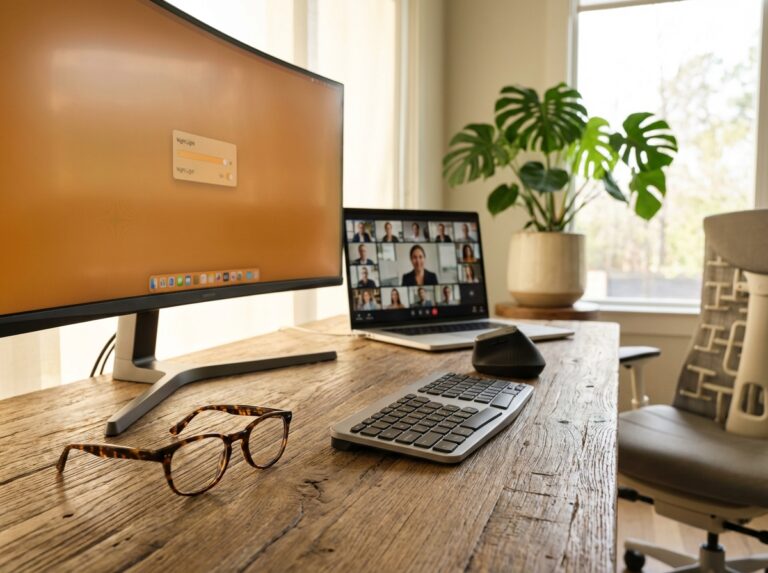
Neck strain from poorly positioned monitors is a leading complaint among office workers and remote teams. This guide explains why monitor height matters, how to measure and set the correct screen position for different setups, and practical fixes — from laptop stands to monitor arms — so you can reduce pain, improve posture, and sustain productive work days.
Why Monitor Height Matters for Neck Health
Your head is heavy. It weighs about 10 to 12 pounds, roughly the same as a bowling ball. When your posture is neutral, your spine is perfectly happy to support that weight. But when you lean forward to look at a poorly positioned monitor, the forces on your cervical spine increase dramatically. For every inch your head drifts forward, the load on your neck muscles nearly doubles. Holding that position for eight hours a day is like asking your neck to perform a constant, low-grade workout it was never designed for. This sustained forward head posture is the primary reason why monitor height is not just a matter of comfort, but a critical component of your long-term health.
When your monitor is too low, it forces your head to tilt down and forward. This stretches the muscles and ligaments at the back of your neck while compressing the discs at the front. Over time, the muscles that are constantly working to hold your head up become fatigued, strained, and painful. This can lead to a cascade of musculoskeletal issues. Conversely, a monitor set too high forces you to tilt your chin up, which compresses the vertebrae and nerves at the base of your skull. This position can restrict blood flow and strain the smaller, more delicate muscles in your neck. Both scenarios lock you into a damaging static posture.
According to established ergonomic principles, the goal is to maintain a neutral posture where your ears are aligned with your shoulders. This alignment minimizes the strain on your cervical spine. An improperly positioned monitor makes this neutral posture impossible to sustain. The constant muscle engagement required to hold your head in an unnatural position is what leads to the most common complaints among office workers.
- Neck and Upper Back Pain. This is the most direct symptom. It can range from a dull ache between your shoulder blades to sharp, localized pain in your neck. This is caused by the overexertion of the trapezius and levator scapulae muscles.
- Tension Headaches. Many chronic headaches originate in the neck. When the suboccipital muscles at the base of the skull become tight from poor posture, they can refer pain to your head, often feeling like a tight band around your forehead.
- Shoulder Stiffness. As you lean forward, your shoulders tend to round and elevate toward your ears. This constant tension in the shoulder girdle leads to stiffness and reduced range of motion.
- Eye Strain. A monitor that is too high or too low can also affect your eyes. An upward gaze exposes more of the eye’s surface, leading to dryness and fatigue. An incorrect viewing distance, often a byproduct of poor monitor height, forces your eyes to work harder to focus.
These symptoms do more than cause discomfort. They directly impact your ability to focus and be productive. Chronic pain is a significant distraction, and the fatigue from muscle strain can drain your energy. This often results in reduced work quality and an increase in sick days, affecting both individual well-being and team performance. Research consistently shows a link between poor ergonomics and lost productivity. For instance, studies indicate that a vast majority of office workers—with some estimates as high as 90%—use setups that contribute to discomfort. You can learn more in this Ergonomic Monitor Placement Guide for Maximum Productivity.
It’s also important to understand the difference between a static and a dynamic posture. Your body is not meant to be held in one rigid position for hours, even a “perfect” one. The healthiest approach is a dynamic posture, where you make small, frequent adjustments. However, a poorly placed monitor forces you into a harmful static posture. Even a small deviation from a neutral angle, when held for a prolonged period, creates significant cumulative stress on your body.
Finally, monitor height does not exist in a vacuum. It is a key part of a holistic ergonomic system where every component affects the others.
Chair Height
Your chair is the foundation. Its height determines the angle of your hips and knees and establishes your baseline posture. If your chair is too low, you might crane your neck upward to see the screen, even if the monitor is technically at the right height for a proper seating position.
Keyboard and Mouse Position
If your keyboard is too far away, you will naturally lean forward and round your shoulders to reach it. This pulls your head and neck out of alignment, completely undoing the benefits of a correctly positioned monitor.
Screen Distance
The distance from your eyes to the screen influences both your head and eye comfort. If it’s too far, you’ll lean in to read the text. If it’s too close, you’ll create eye strain. The ideal distance is typically an arm’s length away.
Monitor Tilt
Tilting your monitor back slightly (around 10-20 degrees) can align the screen perpendicular to your line of sight. This small adjustment helps maintain a neutral neck position and can significantly reduce glare from overhead lighting, further preventing eye strain.
Understanding these interactions is the first step. Your monitor, chair, and keyboard must work together to support a healthy, neutral, and dynamic posture throughout your workday.
How to Measure and Set the Correct Monitor Height Step by Step
Now that you understand why your monitor’s position is so critical, let’s get practical. Adjusting your screen isn’t about guesswork; it’s about measuring and setting it up for your unique body and desk. Follow these steps to create a setup that works with your body, not against it.
Step 1. Find Your Neutral Posture
Before you even think about your monitor, get your body into the right starting position. This is your ergonomic baseline. Sit in your chair and adjust it so your feet are flat on the floor or on a footrest. Your knees and hips should be bent at roughly a 90-degree angle. Sit back so your lower back is fully supported by the chair’s lumbar curve. Let your shoulders relax, and keep your head balanced directly over your spine, with your chin level. This is your neutral seated posture. All measurements should start from here.
Step 2. Measure Your Eye Height and Set the Target
Once you’re in your neutral posture, you need to find your eye level. Ask a colleague to help or use a mirror or your phone’s camera. Measure the vertical distance from the floor to your eyes. This number is your reference point. The primary ergonomic rule is to position the top edge of your monitor’s viewable screen at or slightly below this eye level. You should never have to tilt your head up to see the top of your screen. A quick way to check is to sit comfortably and look straight ahead; your line of sight should hit the top third of your monitor.
Next, consider the center of your screen. Your eyes naturally prefer a slight downward gaze. The ideal position for the center of your monitor is about 15 to 20 degrees below your horizontal eye line. What does that mean in practice? It depends on how far you sit from the screen. For a typical viewing distance of 24 inches, a 15-degree angle means the center of the screen should be about 6.5 inches below your eye level. At 30 inches away, it’s closer to 8 inches below.
Step 3. Set Viewing Distance and Tilt
Your monitor should be about an arm’s length away, typically between 20 and 40 inches. A good way to check is to sit back and extend your arm; your fingertips should just about touch the screen. The right distance allows you to read text comfortably without leaning forward or squinting. If you find yourself squinting, the screen might be too far away or the text size is too small. If you feel like you have to scan back and forth too much with your eyes, it might be too close.
Finally, tilt your monitor back slightly, around 10 to 20 degrees. This angle aligns the screen perpendicular to your natural line of sight and helps minimize glare from overhead lights or windows, a common cause of eye fatigue. To check for glare, look at your screen. You shouldn’t see reflections of lights or windows. Adjust the tilt until the screen is clear and comfortable to view without craning your neck.
Putting It All Together with Examples
Let’s make this concrete. Imagine your seated eye height is 48 inches from the floor.
- For a 24-inch monitor (about 12 inches tall) at a 24-inch distance
The top of the screen should be at 48 inches. The center of the screen should be about 6 inches lower, at 42 inches from the floor. This setup naturally encourages a comfortable downward gaze. - For a 27-inch monitor (about 13.5 inches tall) at a 30-inch distance
The top of the screen should be at 48 inches. The center of the screen should be about 7 inches lower, at 41 inches from the floor.
Special Setups and Considerations
Laptop-Only Users
Working directly on a laptop is one of the most common ergonomic mistakes. The screen is attached to the keyboard, forcing you to hunch over. To fix this, place your laptop on a stand or a stack of books to raise the screen to the correct eye level. Then, use a separate, external keyboard and mouse. This decouples the screen from your input devices, allowing you to maintain a neutral posture.
Dual or Ultrawide Monitor Setups
If you use two monitors, identify your primary screen (the one you use most often). Position it directly in front of you according to the height and distance rules above. Place your secondary monitor right next to it, at the same height, and angled slightly inward toward you like the pages of an open book. For an ultrawide monitor, the center of the screen should be aligned with your nose, while the top edge still follows the eye-level rule. Your goal is to scan the screen with your eyes, minimizing how much you need to turn your head or neck.
Standing Desks
The same ergonomic principles apply when standing. Your head should be upright, and the top of your screen should be at or just below eye level. The challenge with sit-stand desks is the transition. A height-adjustable monitor arm with a gas spring is the best solution here. It allows you to quickly and easily move your monitor between your ideal sitting and standing heights without having to readjust it manually each time.
Bifocals and Progressive Lenses
This is a critical exception to the standard eye-level rule. Bifocal and progressive lenses require you to look through the bottom portion of the glasses for close-up tasks. If your monitor is at eye level, you’ll be forced to tilt your head back to see clearly, which is a direct path to neck pain. Instead, you should lower your monitor significantly. Position it so you can comfortably view the screen through the correct part of your lenses while keeping your head and neck in a neutral, straight position. It may feel unusually low at first, but your neck will thank you.
Screen Size and Resolution
A larger monitor, like a 27-inch or bigger, should be placed farther away to fit comfortably within your field of vision. This prevents you from constantly turning your head to see the corners of the screen. High-resolution screens can make text and icons appear very small, tempting you to lean in. Instead of moving closer, use your computer’s display scaling settings to increase the size of text and interface elements to 125% or 150%. The goal is always legibility from an ergonomic distance.
Troubleshooting and Professional Help
Quick Relief for Acute Pain
If your neck is hurting right now, first, take a micro-break. Stand up, roll your shoulders back and down, and gently stretch your neck by tilting your ear toward your shoulder on each side. Next, perform a quick posture check. Sit or stand tall, with your ears aligned over your shoulders. Finally, assess your monitor. If it’s too high, remove a book from underneath it. If it’s too low, add one. A small, immediate adjustment can provide significant relief.
When to See a Professional
If you continue to experience pain that is persistent, sharp, or worsening despite making these adjustments, it’s time to consult a professional. Other red flags include numbness or tingling that radiates into your shoulders, arms, or hands, or chronic headaches. An optometrist can check for vision issues, while a physical therapist or an ergonomist can provide a personalized assessment and treatment plan. Do not try to push through persistent pain.
Your Two-Minute Ergonomic Checklist
Use this quick list to audit your setup right now.
- Are your feet flat on the floor with your back supported?
- Is the top of your monitor’s screen at or just below your eye level?
- Is your screen about an arm’s length away?
- Is the monitor tilted back slightly (10-20 degrees)?
- If using a laptop, is it on a stand with an external keyboard and mouse?
- Is your primary monitor directly in front of you?
Final Takeaways and Action Steps
You’ve learned the science behind ergonomic monitor placement. Now it’s time to put that knowledge into practice. Protecting your long-term health doesn’t require a complete office overhaul overnight. It starts with small, deliberate adjustments that build a foundation for a pain-free workday. The core principle remains simple. The top edge of your monitor’s screen should be at or slightly below your horizontal eye level. This allows your eyes to naturally drift downward to the center of the screen, at an angle of about 15 to 20 degrees. This single adjustment keeps your neck in a neutral, relaxed position. But a monitor is only one piece of the puzzle. Its height must work in harmony with your viewing distance, which should be about an arm’s length away, and your chair and keyboard height. True ergonomic success comes from creating a balanced system where every component supports proper posture.
Here is a prioritized plan to transform your workspace, starting with immediate, no-cost fixes and progressing to more advanced solutions.
- Master the No-Cost Fixes Today.
Before you buy anything, optimize what you already have. Start with your chair. Adjust its height so your feet are flat on the floor and your knees are at a roughly 90-degree angle. Your arms should rest comfortably at your sides with your elbows also near a 90-degree angle, and your wrists straight when typing. Once your body is correctly positioned, address the monitor. Use a sturdy stack of books, reams of paper, or a simple box to elevate your screen until the top edge aligns with your eye level. Finally, tilt the screen back slightly, about 10 to 20 degrees, to reduce glare and further improve your viewing angle. - Make a Low-Cost, High-Impact Upgrade.
While books work in a pinch, a dedicated monitor riser or laptop stand is a more stable and professional solution. These products provide a solid platform and often include organizational features like cable management or storage space. For laptop users, a stand is critical. It elevates the screen to eye level, but it also makes the built-in keyboard and trackpad unusable. This is a good thing, as it forces the next logical step in ergonomic improvement. - Invest in an External Keyboard and Mouse.
If you use a laptop as your primary work computer, an external keyboard and mouse are not optional luxuries; they are essential tools for preventing strain. Pairing them with a laptop stand allows you to position your screen at the correct height and distance while keeping your keyboard and mouse in a comfortable, neutral position on your desk. This separation is the only way to achieve a truly ergonomic setup with a laptop, preventing the hunched posture that leads to neck and shoulder pain. - Gain Ultimate Control with a Monitor Arm.
A fully adjustable monitor arm is one of the best investments you can make for your workspace. It clamps to your desk and allows you to control the height, distance, and tilt of your screen with effortless precision. This is especially valuable for those who use sit-stand desks, as you can readjust your monitor in seconds when changing positions. For users with dual or ultrawide monitors, a monitor arm is the most effective way to achieve proper alignment and create a seamless viewing experience. The growing market for these devices reflects their proven benefits in modern workspaces. - For Teams and Employers, Prioritize Professional Guidance.
For organizations, creating an ergonomic environment is a key part of employee wellness and productivity. Investing in professional ergonomic assessments can provide personalized recommendations for each team member. For shared or flexible workstations, providing highly adjustable equipment, like quality monitor arms and chairs, is crucial. As workplace design evolves, a focus on employee-centric ergonomics is becoming a standard, not a perk, as noted in predictions for 2025.
Beyond the initial setup, maintaining an ergonomic workspace is an ongoing practice. Pay attention to your body. If you feel persistent stiffness, eye strain, or headaches, it’s a sign that something needs adjustment. Schedule regular micro-breaks throughout your day. The 20-20-20 rule is a great starting point. Every 20 minutes, look at something 20 feet away for 20 seconds. Get up, walk around, and perform simple neck and shoulder stretches every hour. If pain persists despite these adjustments and habits, it’s time to consult a professional. A physical therapist or a certified ergonomist can provide a detailed assessment and a targeted plan to address your specific issues.
Take a moment right now to evaluate your screen and make one small adjustment for a healthier workday.
Sources
- Height Adjustable Monitor Stand Analysis 2025-2033 — The global market for height-adjustable monitor stands is experiencing robust growth, driven by increasing awareness of ergonomic benefits and a …
- Height-Adjustable Monitor Strategic Insights: Analysis 2025 and … — The height-adjustable monitor market is experiencing robust growth, driven by increasing awareness of ergonomic benefits and the rising prevalence of remote …
- Ergonomic Monitor Placement Guide for Maximum Productivity — Studies indicate 75% of employees working with laptops have their monitors positioned incorrectly, leading to discomfort and potential health …
- Monitor Arm Guide: Optimize Display Setup & Prevent Neck Strain — Research suggests that incorrect monitor height can lead to forward head posture, causing neck and shoulder strain, while improper distance …
- The Evolution of Ergonomics: Trends to Watch in 2025 — From desk height to monitor placement, professional ergonomics evaluations examine every element of the workspace. This ensures that no detail …
- Office Ergonomics Trends for 2025: What's New in Workplace Design? — Monitor positioning: The top of your screen should be at or slightly below eye level, about an arm's length away from you. Chair adjustment …
- Office Ergonomic Trends and Predictions for 2025 — The trends and predictions for 2025 reflect a shift towards a more employee-centric and sustainable approach to workplace design.
- What Is the Best Position for Your Computer Screen? – ViewSonic — Your monitor should be at or just below eye level and directly in front of you. This keeps your neck and shoulders relaxed while maintaining proper posture.
Legal Disclaimers & Brand Notices
General Health and Informational Disclaimer: The content of this article is provided for informational and educational purposes only. It discusses general ergonomic principles and common musculoskeletal issues. It is not intended to be a substitute for professional medical advice, diagnosis, or treatment from a qualified healthcare provider, physical therapist, or certified ergonomist. Always seek the advice of your physician or other qualified health professional with any questions you may have regarding a medical condition, persistent pain, or before making significant changes to your physical routine or workspace based on health concerns.
Trademark Acknowledgement: All product names, logos, and brands mentioned in this article are the property of their respective owners. Reference to any specific commercial products, processes, or services does not constitute or imply endorsement, recommendation, or favoring by the publisher.